Create a location
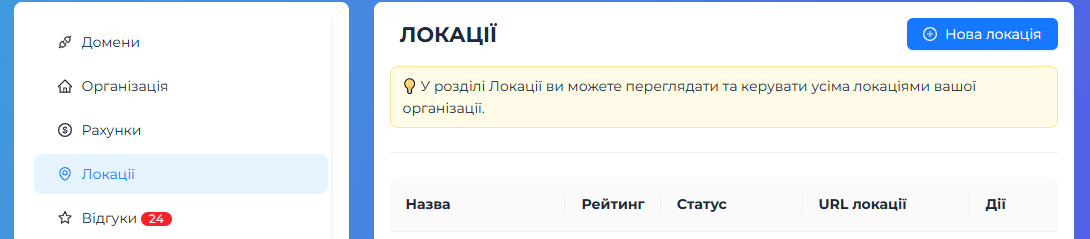
Open the Locations section of your account. Each row is one page: its name, rating, an on/off switch, the public link and actions (edit, delete).
- Press the add button to open the form.
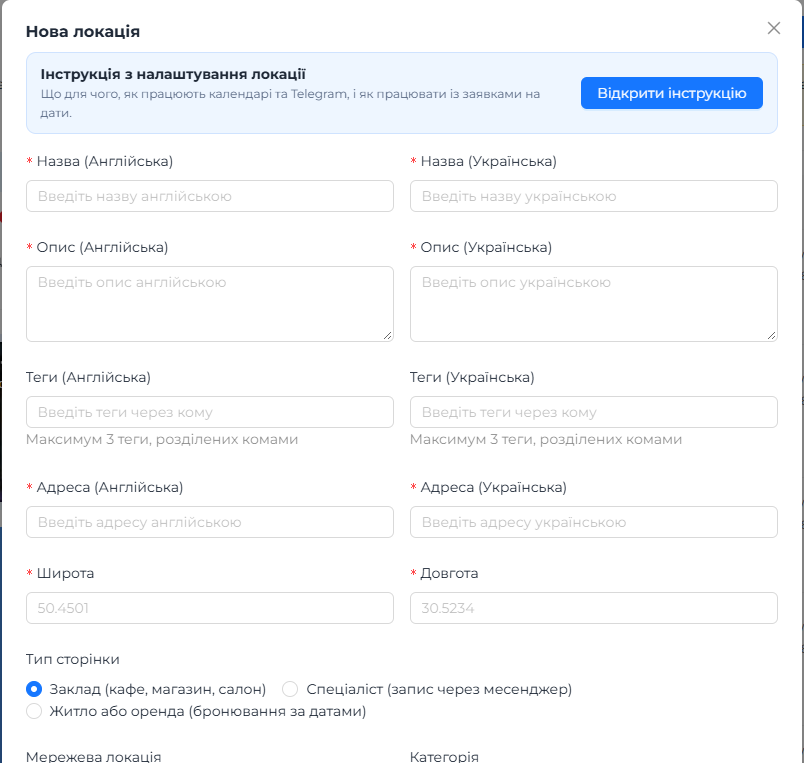
- Fill in the names, descriptions and addresses in both languages and set the coordinates.
- Choose the page type, add contacts, services and a cover, then press Save.
- Copy the public link from the table. It looks like moimodo.com/location/<id>. Put it in your Instagram bio, on a business card or turn it into a QR code with any QR generator.
Basic fields
The top part of the form describes the page.
- Name (EN and UA): shown as the page title. The page language switches by the language button on the page itself.
- Description (EN and UA): one or two sentences about what you offer. This text is also used when the link is shared.
- Tags (up to 3 per language): short labels over the cover, for example cabin, hot tub, Slavske.
- Address (EN and UA): shown under the title. For a private home you can write only the town and add exact details after booking.
- Coordinates: latitude and longitude. Take them from a map by right-clicking the place. They are required, so a town centre is fine if you do not want to show an exact point.
- Category: a free word such as bakery, hotel or beauty.
Page type
The type changes the wording and which blocks appear.
- Place: the contact block is titled Contact. Good for cafes, shops, salons.
- Specialist: the block is titled Book an appointment and the phone is added to the buttons. Good for masters and freelancers.
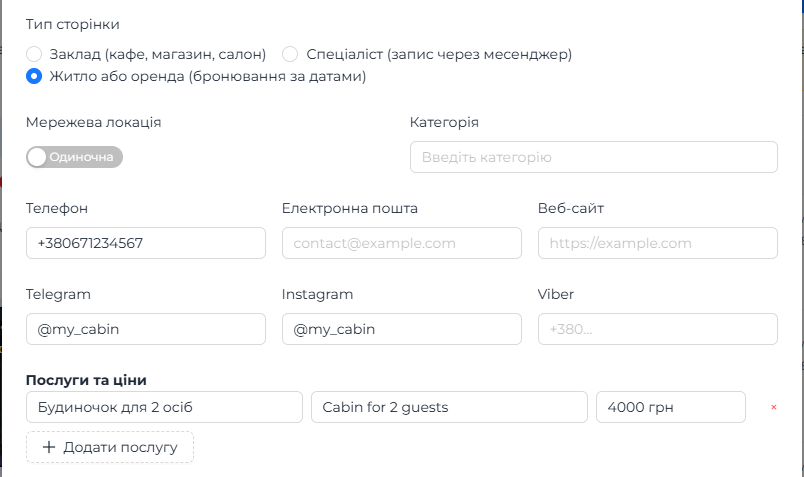
- Stay or rental: the block is titled Book your dates and the phone is added to the buttons. Use it together with the date calendar below.
- Chain location: for a branch of a chain that has its own page.
Contacts and services
Each filled contact becomes a button on the page. Leave a field empty and the button does not appear.
- Telegram, Instagram: enter a nickname or a full link, for example @mybusiness.
- Viber and phone: enter the number in international format, +380...
- Website and email: shown as links.
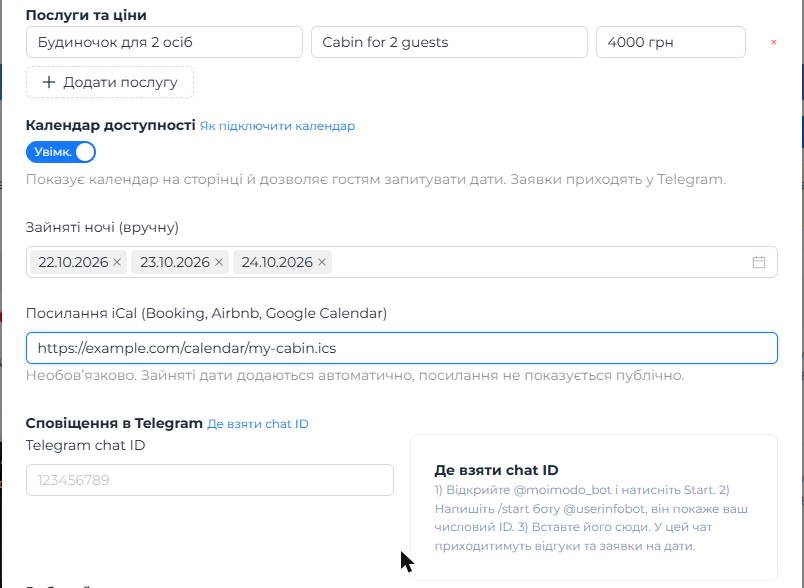
- Services and prices: add a row for each service, a name in both languages and a price such as 800 UAH. Leave the price empty if it varies.
Cover, photos and schedule
Cover: upload your own photo or pick one of the ready-made covers (a colour and a shape). A calm photo works best because the tags and the Add review button are placed over it.
Gallery: additional photos shown as a gallery under the services.
Working hours: set opening and closing times for each weekday. If you do not fill the schedule in at all, the page hides the open or closed status.
Reviews and QR
Visitors leave a rating and a comment on the page. A review goes to moderation and arrives in your Telegram with a Publish button. Until you press it the review is not visible to others.
For reviews to reach you, set the Telegram chat ID (see below). To collect reviews from guests, print a QR code with the page link and place it where people finish their visit: the counter, the table, a business card.
Date calendar
The calendar is meant for rentals and anything booked by dates. It appears under the contact buttons when the switch in the settings is on.
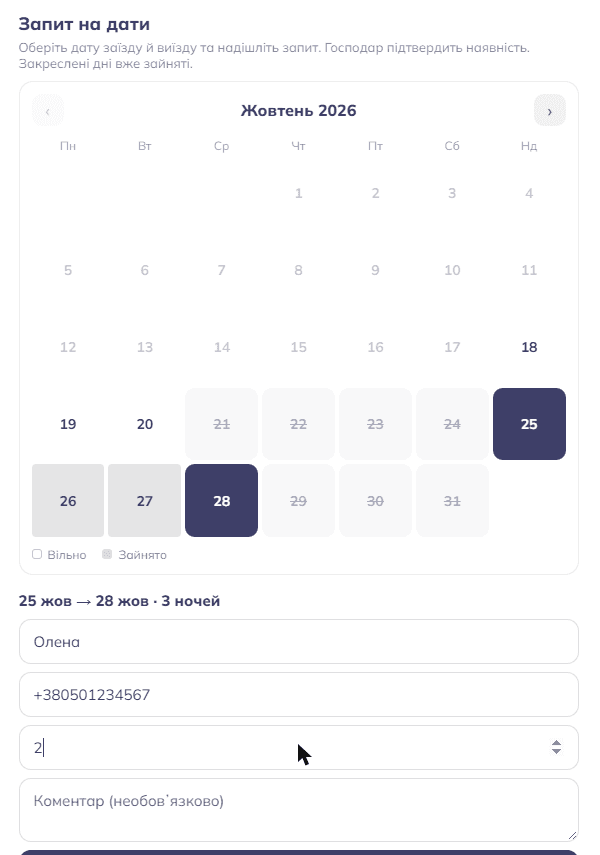
What the guest sees: a month grid, taken nights crossed out, a hint to pick check-in and then check-out, and a form with name, phone or Telegram, number of guests and a comment. The check-out day itself can be one on which the next guest arrives: only the nights between check-in and check-out must be free.
- In the location form find the block Availability calendar and turn the switch on.
- Press the Taken nights field and tick the nights that are already booked. Remove a date from the field when it becomes free again.
- If you keep a calendar in Booking, Airbnb or Google Calendar, paste its iCal link into the iCal field (see below). The dates are merged with the manual ones.
- Press Save and open the public page to check the result.
Calendars through iCal
iCal is a read-only link to a calendar. Moimodo reads it and crosses out the nights that are taken there. The data refreshes automatically, at most every ten minutes, so a fresh booking in Booking or Airbnb will appear on your page shortly. Moimodo does not write anything back to those services.
Where to get the link:
- Booking.com: Extranet, Rates and availability, Sync calendars, Export calendar, copy the link.
- Airbnb: Calendar, Availability settings, Connect calendars, Export calendar, copy the link.
- Google Calendar: open the calendar settings on a computer, find Integrate calendar and copy the Secret address in iCal format.
- Other services (Vrbo, Expedia, your own site) usually have an export iCal option with the same idea.
Menu names can differ slightly between versions of these services. Paste the link into the iCal link field. It must start with https. Treat the link as private: anyone who has it can read your calendar. Moimodo never shows it on the public page.
Things to know: only the days that the calendar marks as taken are crossed out; a request on the page does not block dates by itself; and if the link stops working, the page keeps showing your manual dates.
Telegram chat ID: where to get it
Reviews and date requests are sent by the bot @moimodo_bot. The bot can only write to a chat that has started it, and it needs a numeric chat ID.
- Open @moimodo_bot in Telegram and press Start. Without this step the bot cannot write to you.
- Open the bot @userinfobot and press Start. It replies with your Id, a number such as 123456789.
- Copy the number and paste it into the Telegram chat ID field in the location settings. Press Save.
- To test it, send a review through the public page. The message should arrive within a few seconds.
- Group chat: add @moimodo_bot to the group, then add @userinfobot or @getidsbot to the same group once to see the group ID. A group ID is a negative number, often starting with -100. Remove the helper bot afterwards.
- A team: create a group with the people who handle requests and use the group ID, so everybody sees the messages.
- Not arriving? Check that you pressed Start in the bot, that the number has no spaces or letters, that for a group the bot is a member, and that you did not block the bot.
- Until a chat ID is set, messages go to the general Moimodo chat, so set your own as soon as you can.
Working with date requests
A request arrives in Telegram as a short message: the object, check-in and check-out dates, number of nights, guests, name, contact and comment.
- Open the request and write to the guest in the contact they left (phone, Telegram or Instagram). Confirm the dates, the price and the prepayment.
- If you agree, open the location settings and add the nights to the Taken nights field. If you use an iCal calendar, mark them there instead and the page picks them up shortly.
- If you do not agree, answer the guest and offer other dates. Nothing needs to change on the page.
- The page does not allow a request on nights that are already taken. If two guests send a request for the same dates, both reach you: confirm one and mark the dates as taken.
- Requests are also stored on the Moimodo side, so a missed Telegram message does not lose the request.
- A request does not charge anything and does not guarantee a place: the final decision is always yours.
Quick checklist before you share the link
- Names, descriptions and addresses are filled in both languages.
- The page type fits: place, specialist or stay.
- At least one contact button works: open the page on your phone and tap it.
- Services are listed, with prices where you want to show them.
- The Telegram chat ID is set and a test review arrived.
- For rentals: the calendar is on and the taken nights or the iCal link are added.
- The link is in your Instagram bio or on a QR code.